User guide#
Launch VISOR#
To run VISOR, you provide a VTK or VTM input file. If you want, you can include optional metadata in start and update requests. VISOR’s three modes of operation let you pick the launch method that best matches your workflow.
Learn which input formats VISOR supports.
Learn how to use metadata in start and update requests.
Launch VISOR from a Python script using the Python API.
Launch VISOR with the HTTP API service and manage multiple 3D visualization instances.
Run VISOR and connect to it in a Dash app with the VISOR Dash component.
Modify a VISOR scene#
You can update datasets and variables values while VISOR is running.
Add, list, and remove datasets in an already-running VISOR instance.
Update variable values in a specific dataset loaded in an already-running VISOR instance.
Bring data into VISOR#
Use VISOR as a 3D visualization tool for solution apps. VISOR uses VTK as its internal format. You can work with in-memory data and files in these formats:
vtkPolyDatavtkUnstructuredGridvtkMultiBlockDataSetvtkPartitionedDataSet
If your source data uses another format, use a conversion tool to convert it to a VTK format.
Use VISOR in a SAF solution#
VISOR is a shared technology component (STC) within the Solutions Application Framework (SAF) that provides a 3D visualization environment for simulation data. VISOR is designed to be integrated into SAF solutions, allowing users to visualize and interact with simulation results in a consistent and user-friendly manner.
Product Instance Manager#
VISOR is exposed in the SAF solution through its Product Instance Management (PIM) functionality, which provides a standardized interface for managing and accessing VISOR instances. See more information in the PIM documentation.
Understand the VISOR UI#
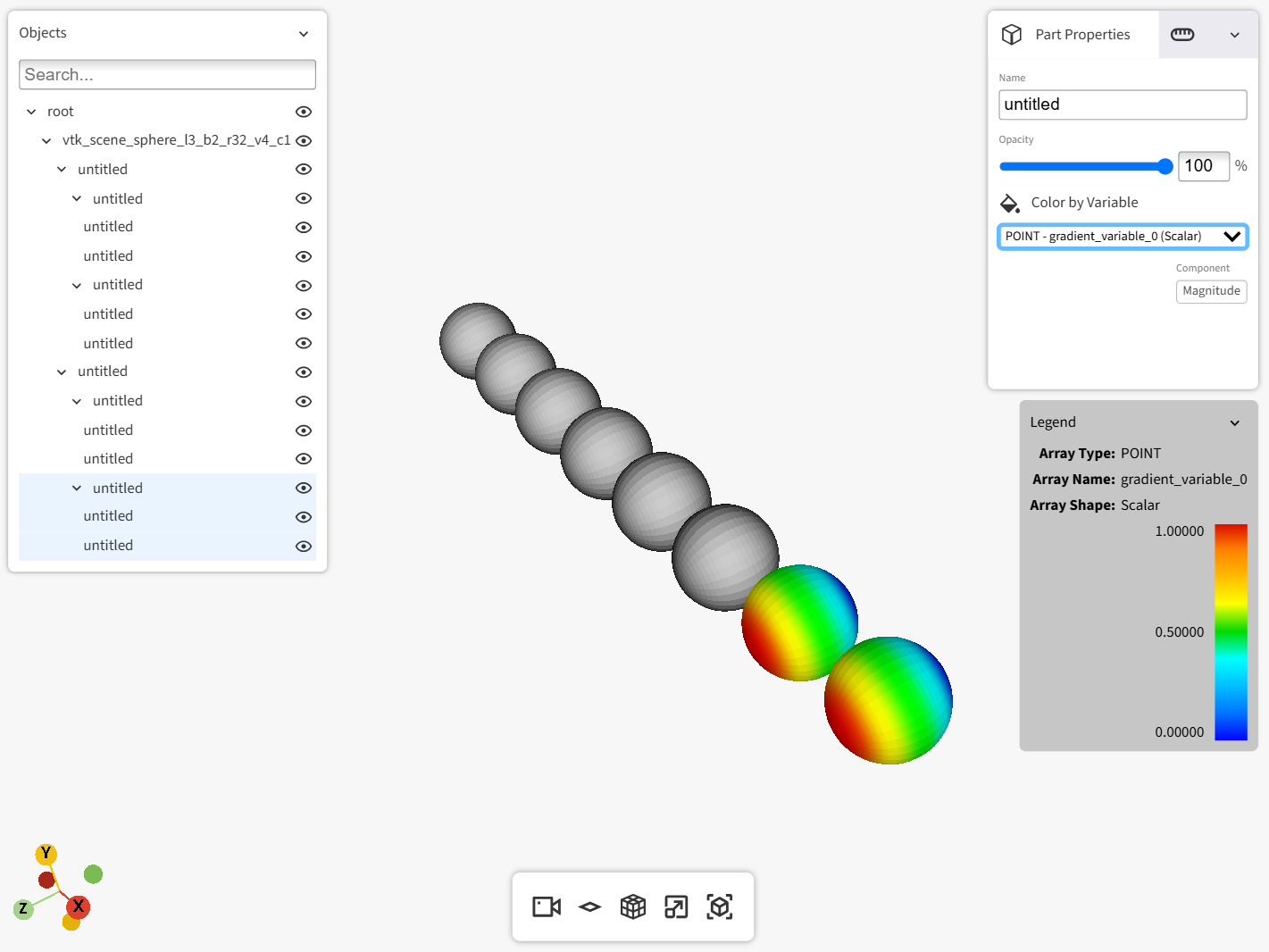
VISOR’s UI, which exists as a layer above the VTK rendering window, is divided into panels. The following linked pages describe how to use these panels.
- Rendering window
Learn how to use the VISOR rendering window.
- Lower horizontal bar
Learn how to use the controls in the lower horizontal bar.
- Part list
Learn how to use the part list.
- Top right panel
Learn how to use the Part Properties and Legend settings tabs.