

Launch VISOR using the Python API#
In a Python app, use the Visor class from the ansys.visor.viewer package to visualize a file or a VTK dataset object.
This page includes simple examples that show how to visualize VTK and VTM files and in-memory VTK dataset objects.
For more comprehensive examples, see the Examples and API reference sections.
Load a VTK or VTM file#
VISOR supports VTK and VTM files. For information on supported VTK data types, see Supply an input file.
The following code starts a desktop VISOR app, opens an input file, and starts a standalone app on
http://localhost:8081.
from ansys.visor.viewer import Visor

an_input_file = "your_file.vtm"
visualizer = Visor()
# Alternatively, set the url parameter to change the default URL, for example:
# visualizer = Visor(url="http://localhost:8888")
visualizer.start(input=an_input_file)
To use a different URL, set the url parameter when you initialize the Visor class.
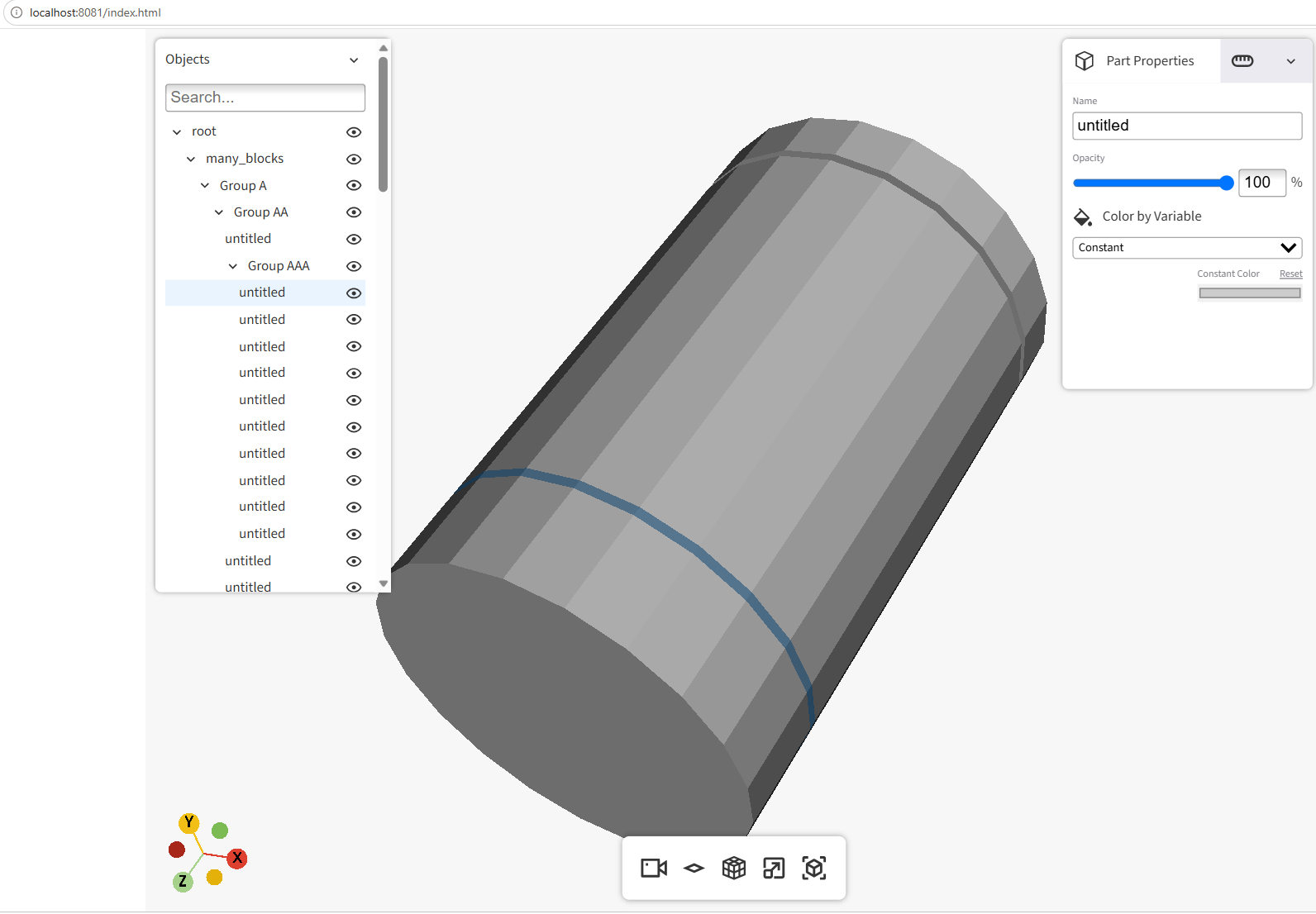
This image shows an example with a VTM file:
Load a VTK dataset object#
You can visualize in-memory VTK objects. The following code uses
vtkCubeSource from VTK to visualize a simple cube.
It starts a desktop VISOR app, opens the cube object, and starts a standalone app on http://localhost:8081.
from vtk import vtkCubeSource
from ansys.visor.viewer import Visor


# Create a cube source and get the output as a vtkPolyData object
def get_cube(x: float, y: float, z: float):
    cube_source = vtkCubeSource()
    cube_source.SetXLength(x)
    cube_source.SetYLength(y)
    cube_source.SetZLength(z)
    cube_source.Update()
    return cube_source.GetOutput()


cube = get_cube(1.0, 2.0, 3.0)

# Visualize the cube using VISOR
visualizer = Visor()
visualizer.start(input=cube)
Update the VISOR visualization#
After the VISOR server starts, call the update() method to update the visualization.
# Update the visualization to display a new input file.
visualizer.update("new_input_file.vtm")
You can also pass a VTK dataset object to the update() method.
The following code updates the previously created cube to a sphere:
from vtk import vtkSphereSource


# Create a sphere source and get the output as a vtkPolyData object
def get_sphere(radius: float, theta_res: int, phi_res: int):
    sphere_source = vtkSphereSource()
    sphere_source.SetRadius(radius)
    sphere_source.SetThetaResolution(theta_res)
    sphere_source.SetPhiResolution(phi_res)
    sphere_source.Update()
    return sphere_source.GetOutput()


sphere = get_sphere(1.0, 32, 32)

# Update the visualization to show the sphere instead of the cube
visualizer.update(sphere)
Get information about the VISOR instance#
Use the following Visor properties to get information about the running instance:
# Get the URL where the VISOR server is running
url = visualizer.url
print(f"VISOR server is running at: {url}")

# Get the host where the VISOR server is running
host = visualizer.host
print(f"VISOR server is running on host: {host}")

# Get the port where the VISOR server is running
port = visualizer.port
print(f"VISOR server is running on port: {port}")

# Get a dictionary of info about the VISOR instance
info = visualizer.info
# e.g.
# {'app_name': 'VISOR Viewer',
#  'host': 'localhost',
#  'port': 8081,
#  'standalone': True,
#  'file_input_path': '../../examples/assets/tensors9.vtp',
#  'metadata': None}
Stop the VISOR visualization#
Call stop() to stop the VISOR server:
# Stop the VISOR server
visualizer.stop()
print("VISOR server has been stopped.")
Rendering engine#
VISOR uses VTK.wasm as its default (and only supported) rendering engine. VISOR uses Trame to support VTK.wasm.
Further references#
For comprehensive Python API documentation, see API reference.
For usage examples, see Examples.