

Rendering window#
The rendering window is the scene behind the UI overlay.
Technically, it is an HTML <canvas> element where the frontend VTK rendering framework draws.
The rendering window shows the loaded geometry, widgets, and other items based on the current UI state.
You can also interact with the rendering window by using mouse and keyboard controls.
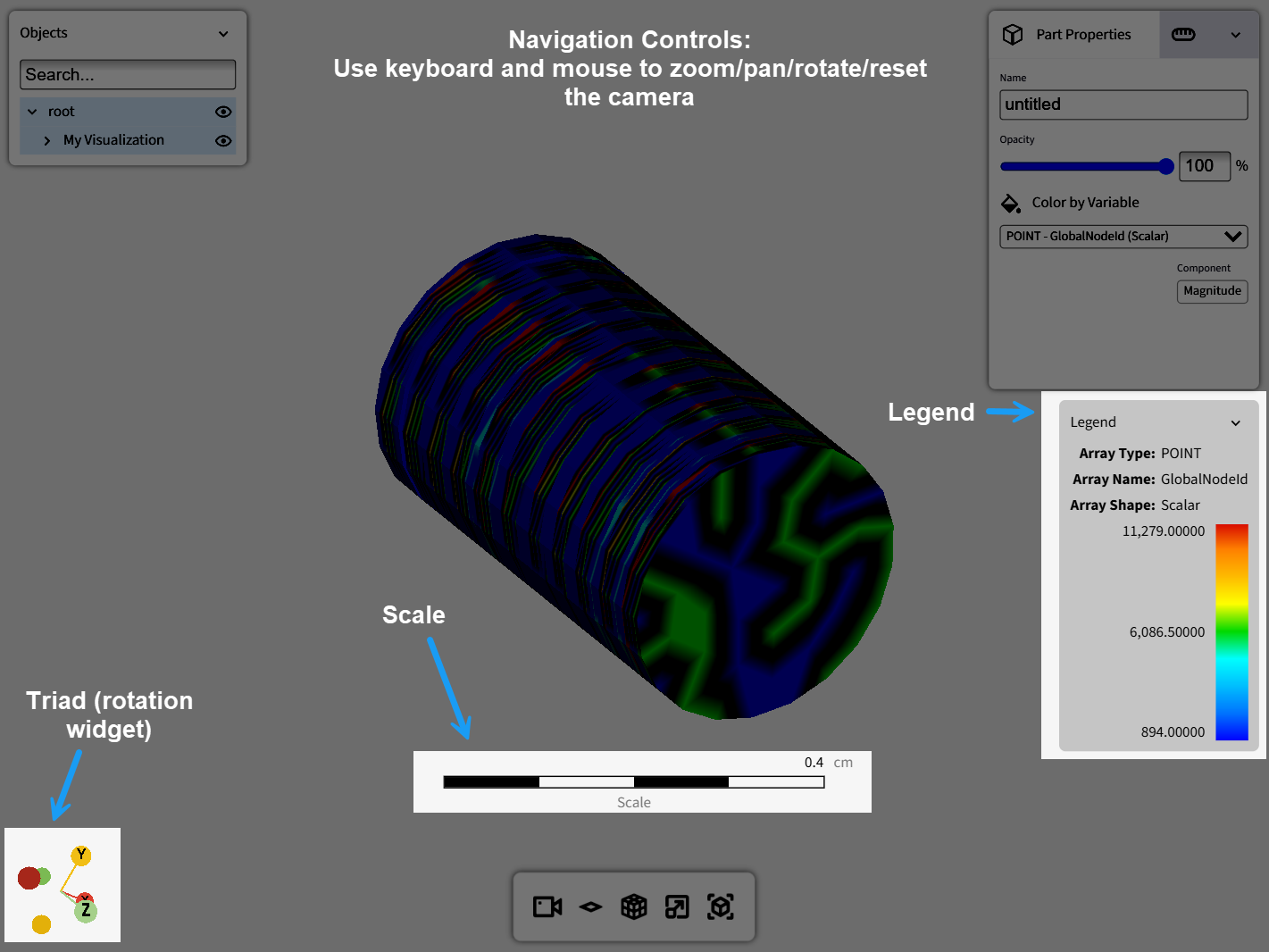
Use the following controls and overlays in the rendering window:
Camera hotkeys
Fit to camera: Press
Zto center the mesh in the window without rotating the camera.Reset camera: Press
Rto center the mesh and rotate the camera toward positive Z.
Navigation controls
Rotate camera: Hold the left mouse button and drag, or hold the middle mouse button and drag.
Pan: Hold the left and right mouse buttons at the same time and drag.
Zoom: Hold the right mouse button and drag up to zoom in or down to zoom out.
Triad (rotation widget)
The triad always matches the camera orientation.
To snap to a specific axis, click
X,Y, orZin the widget. This snap-to-axis behavior rotates the camera around a floating pivot in the center of the viewport, not around the model bounding-box center.
Scale
The scale (ruler) overlay shows the current camera zoom scale.
To set the displayed unit, provide a unit in the start options. For more information, see Use metadata.
If you do not provide a unit in the start options, the scale overlay is not displayed.
The scale overlay appears only in orthographic mode. For more information, see Lower horizontal bar.
Legend
The legend overlay appears only when the selected part has a color variable (data array).
The legend content changes based on the selected color variable, component, and minimum and maximum values.
You cannot control legend position or visibility.
You cannot edit the displayed color gradient.