

Part list#
Use the top-left panel to access the dataset part list. This object tree helps you inspect parent-child relationships defined in the loaded VTK dataset. You can search for a part, change visibility for individual parts or part groups, and select individual parts for further actions.
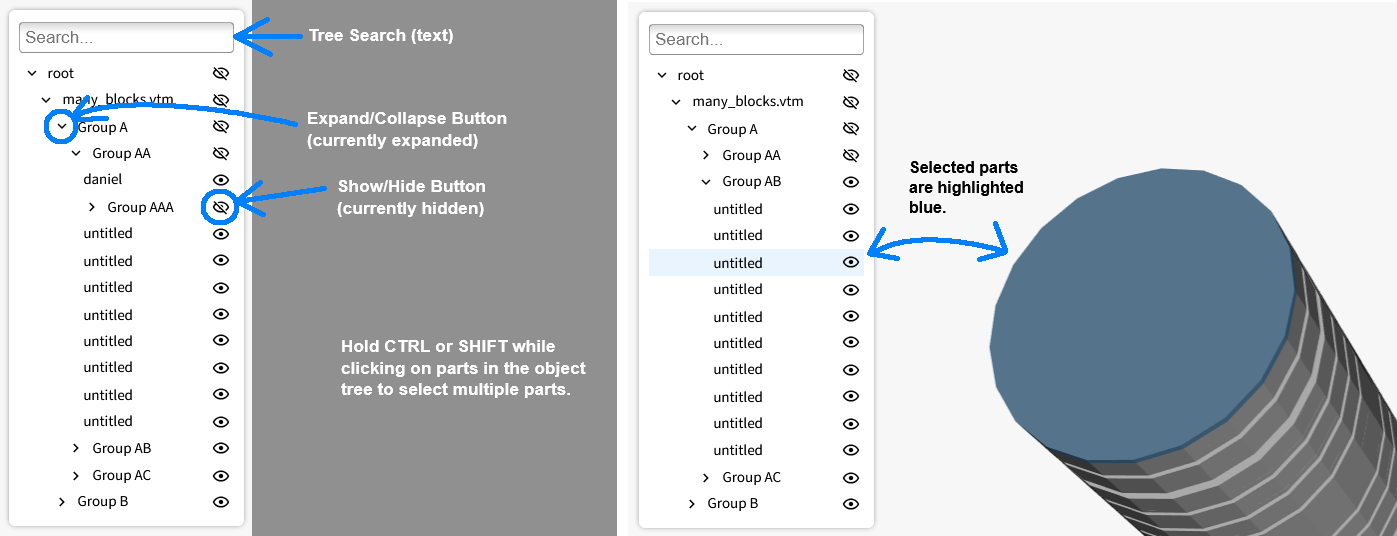
Use the following controls in the part list:
Search input
Type in the search input to filter the object tree by text.
The filter matches part names.
Show/hide
Click the eye icon next to a part or part group name to hide it.
Click the eye-slash icon to show it again.
Part groups
Click
▶to collapse a part group.Click
▼to expand a part group.The loaded VTK dataset defines which parts appear in each group.
Part groups are organizational entries in the part list and do not exist as separate scene objects.
Selecting parts
Hold
CTRLorSHIFTand click parts or part groups to select multiple items.Use
CTRL+ click to select individual parts or deselect a selected part.Use
SHIFT+ click to select a range of parts.Click a part group to select all descendant parts.
Selected parts are shaded blue. Parts with color variables or constants are not shaded when selected because of a VTK bug. For related limitations, see Known limitations.
If you select parts in the rendering window, the part list updates to match that selection.
To clear all selections, left-click an empty area in the rendering window.