Lower horizontal bar#
Use the lower horizontal bar to toggle scene widgets and fullscreen mode.
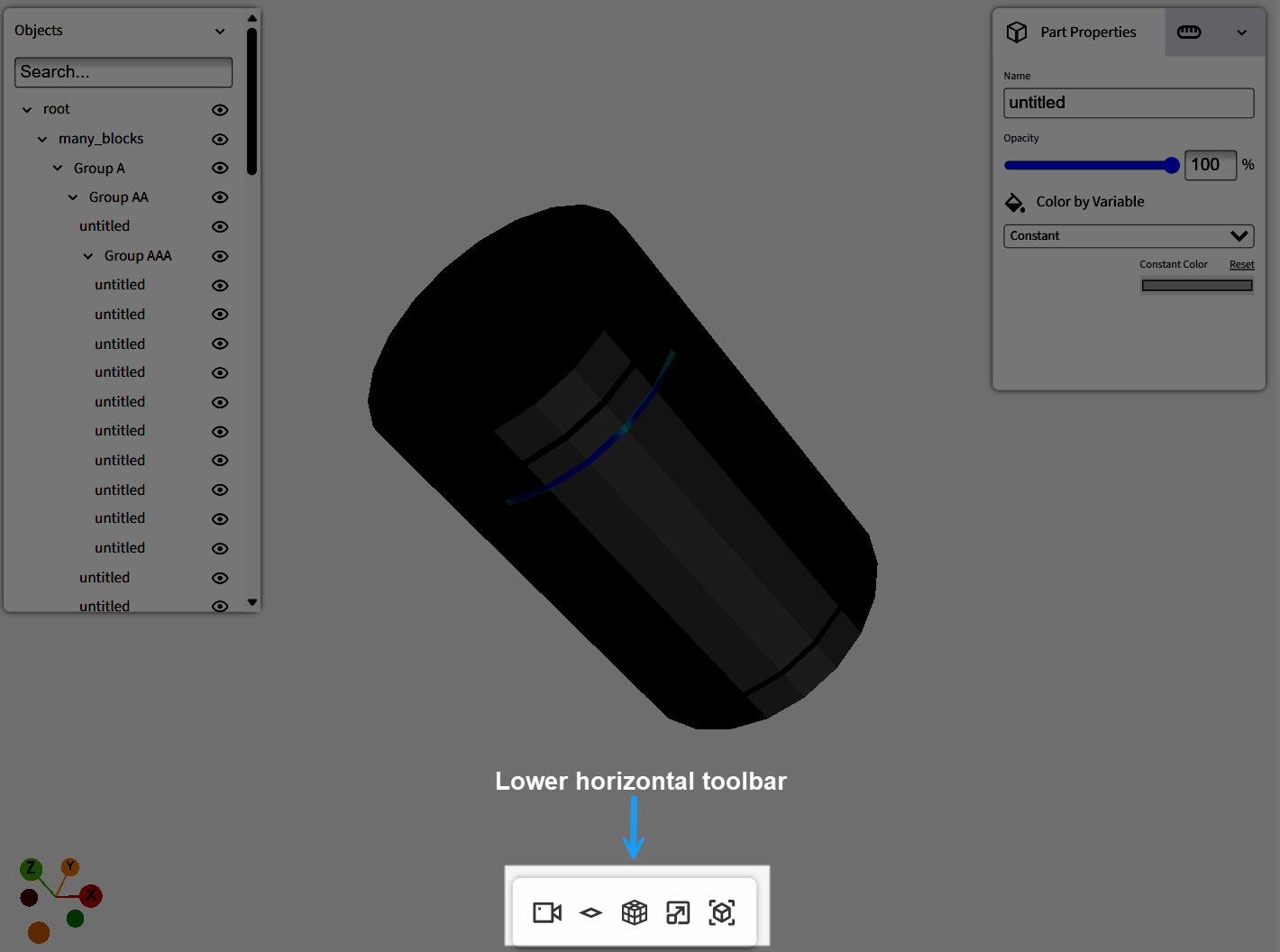
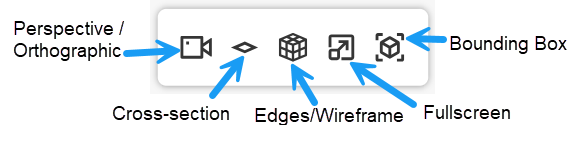
Use the following controls in the lower horizontal bar:
Perspective/orthographic
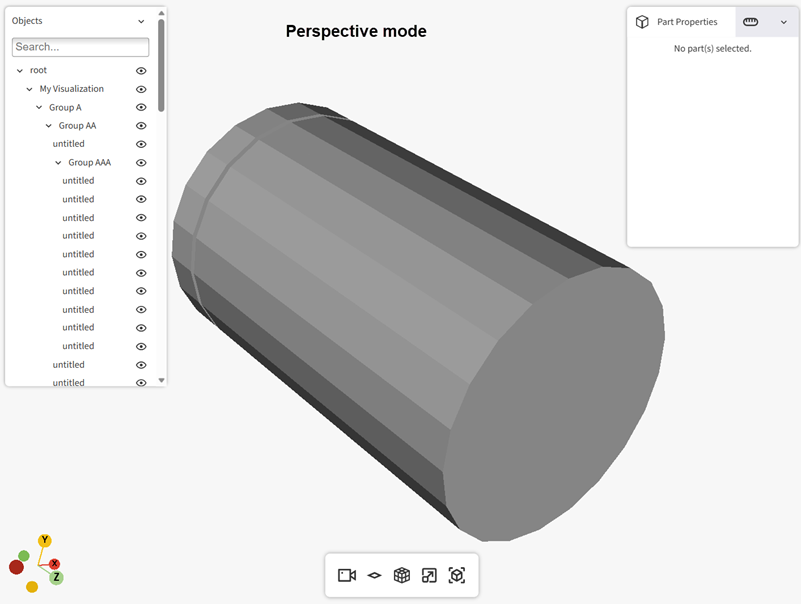
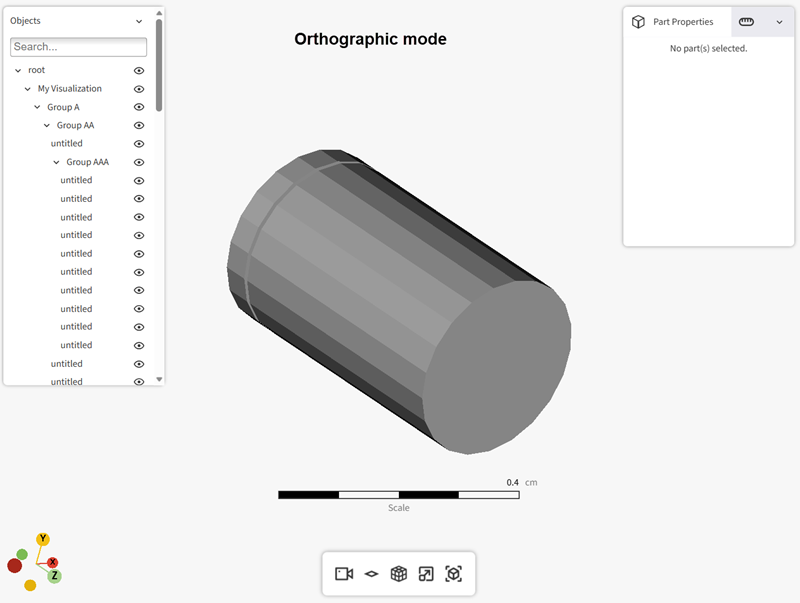
By default, VISOR opens models in perspective mode and hides the scale.
Click the camera icon to switch to orthographic mode. The view changes and the scale is displayed.
Click the camera icon again to return to perspective mode.
Cross-section
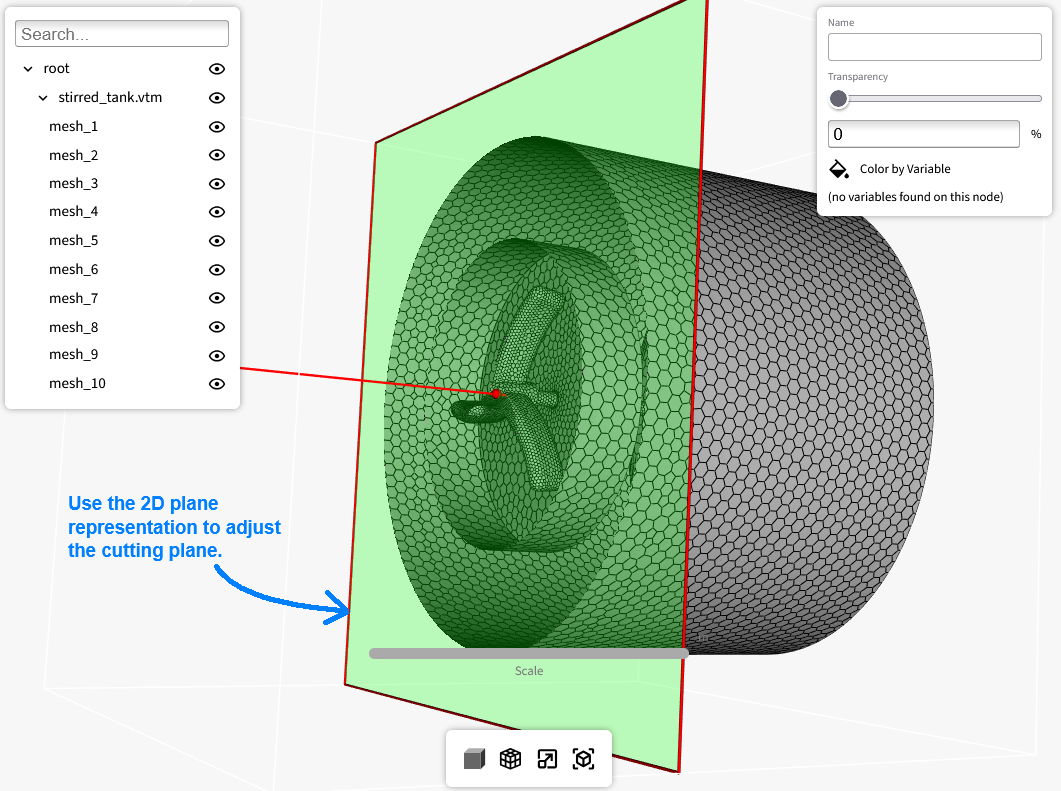
Click the diamond icon to toggle the cross-section widget.
When enabled, the widget bounds fit the full geometry bounding box.
Use the 2D plane representation inside the widget bounds to change the cutting-plane location and orientation.
Edges/wireframe
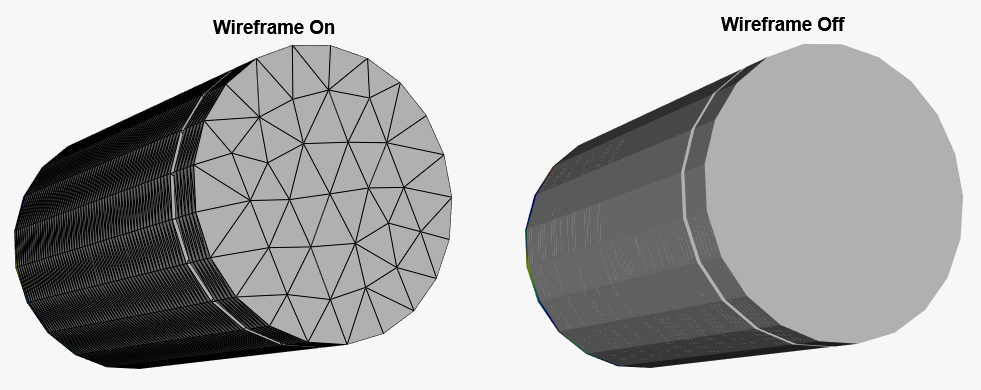
Click the grid-cube icon to toggle wireframe on or off.
Wireframe applies globally and does not apply per part.
Fullscreen
Click the popout-square icon to toggle fullscreen mode.
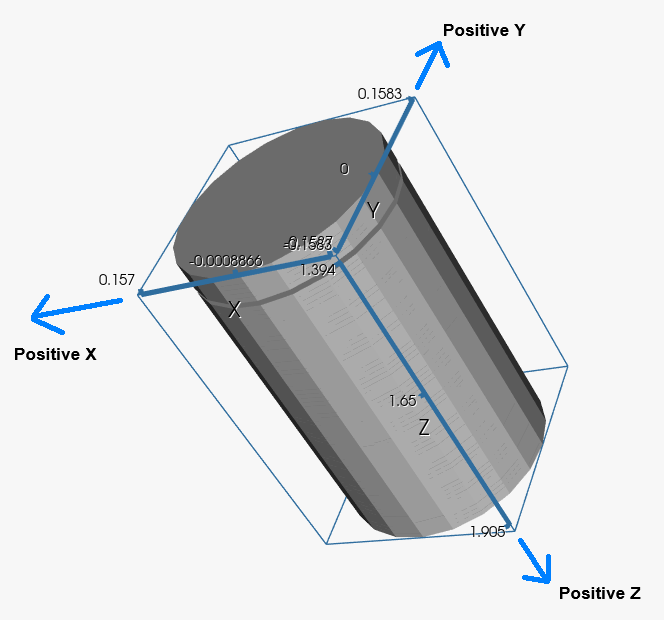
Bounding box
Click the bounded-cube icon to toggle the bounding-box widget.
When enabled, a bounding box appears around the parts in the rendering window.
The corners display the numeric bounds for the X, Y, and Z axes.
The bounding-box size does not update when you hide parts. This behavior may change in a future VISOR release.